> ## Documentation Index
> Fetch the complete documentation index at: https://docs.nrev.ai/llms.txt
> Use this file to discover all available pages before exploring further.
# Group Data
> Roll up your data with ease — group rows by fields like region, rep, or tier, and apply smart aggregations like sum, count, or join. Perfect for building summaries that actually make sense.
## What It Does
* Groups rows by one or more columns
* Applies aggregation logic like **Sum**, **Count**, **Average**, **Append**, and more
* Lets you join multiple values into a single field using a defined separator
* Auto-generates clean output column names (e.g. `sum_revenue`, `append_names`)
* Returns a grouped dataset — perfect for summaries, deduplication, and reporting
***
## 🏁 Getting Started
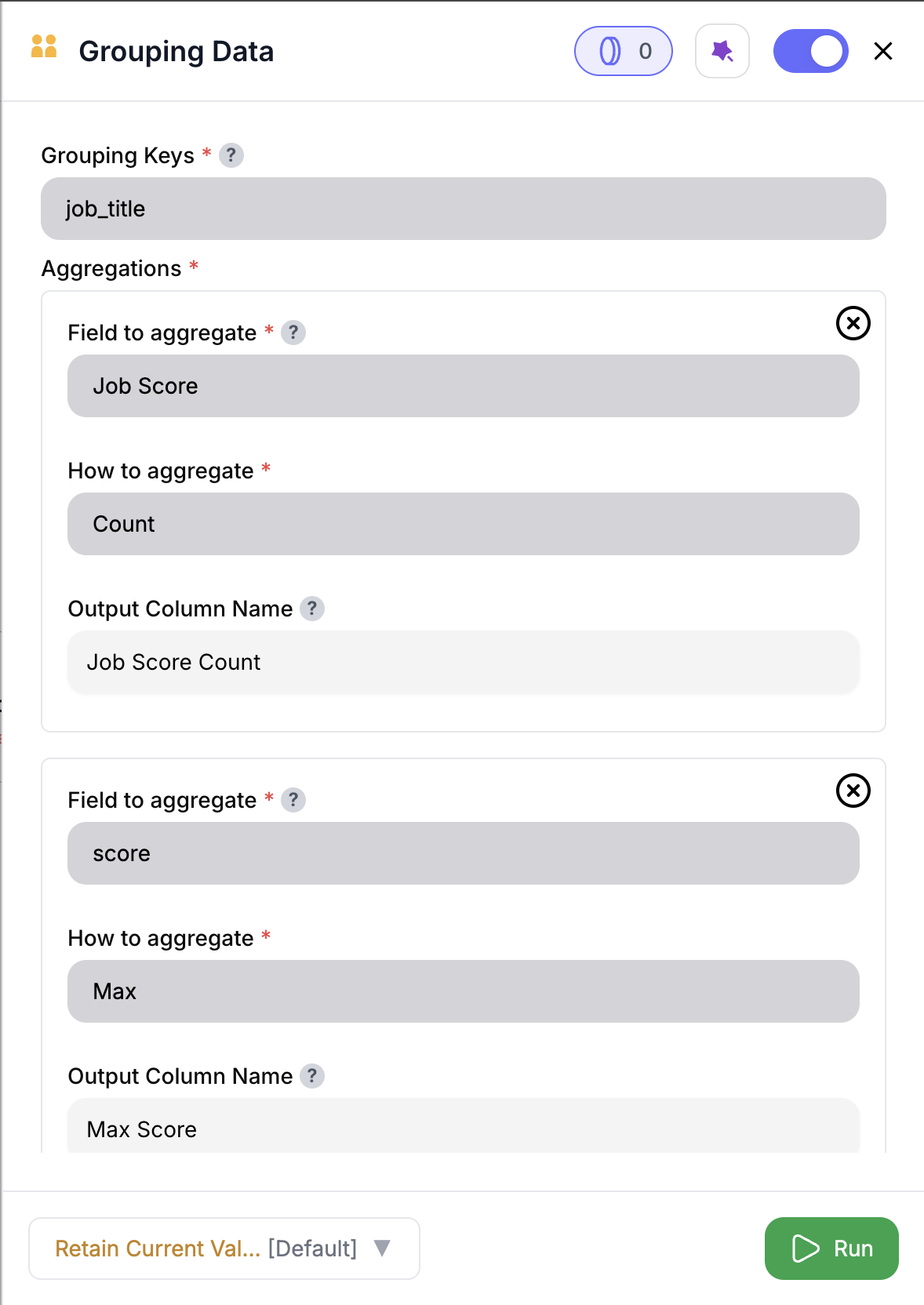 Drop in the **Group Data** node from the panel.
Select one or more fields to group by — e.g., `email`, `domain`, `rep`, or `tier`.
Choose a field to aggregate and how to combine it: Sum, Count, Max, Average, Append, etc.
Select how to join values: comma, space, newline, or list.
You’ll get one row per group — with calculated metrics in the output.
***
## Inputs
### 🛠️ Required Fields
* **Grouping Keys (✅)**\
One or more fields used to group your dataset.\
*Why it matters:* This defines the level at which rows will be grouped — like account, region, or person.
* **Aggregations (✅)**\
For each column you want to summarize, choose how it should be combined.\
*Why it matters:* Defines what’s returned for each group.
You must define at least one aggregation. Otherwise, the node won’t configure.
***
## 🔢 Supported Aggregations
| Aggregation | Description | Separator Required? |
| ---------------- | ---------------------------------- | ------------------- |
| **Sum** | Adds numeric values | ❌ |
| **Average** | Returns mean value | ❌ |
| **Max** | Returns the largest value | ❌ |
| **Min** | Returns the smallest value | ❌ |
| **Count** | Counts rows per group | ❌ |
| **Count Unique** | Counts unique values in the column | ❌ |
| **Append** | Joins all values into one | ✅ |
### Separator Options for Append
* **Comma**
* **Space**
* **New Line**
* **Create List** (returns values like `["a", "b", "c"]`)
***
## Output
You’ll receive one row per group.
* Grouping columns are preserved
* Aggregated columns are added as new fields (e.g., `count_email`, `sum_revenue`)
* Original individual rows are not retained — this is a summary view
***
## 🚀 Example Use Cases
| Scenario | Grouping Keys | Aggregations |
| ---------------------------- | -------------- | ---------------------------------------- |
| Notes per email | `email` | Append of `note_text`, newline separator |
| Revenue by region | `region` | Sum of `revenue`, Count of `deals` |
| Most recent title by contact | `person_id` | Max of `title` |
| Count by domain + tier | `domain, tier` | Count of rows |
***
## ✨ Pro Tips
Want readable summaries in one cell? Use **Append** with a newline, comma, or even a list — your future self will thank you.
Want a multi-dimensional view? Group by multiple fields like `region + stage`, or `rep + month`.
Not loving names like `sum_revenue` or `append_notes`? No problem — rename them right in the preview panel after you run the node.
***
## ⚠️ Important Considerations
All selected columns must exist in your input. If any are missing, the node will return a clear error.
Using **Append**? Be sure to select a separator — without one, the node won’t configure.
If grouping on a column with blanks, those rows will still be grouped together.
***
## 📝 FAQ
Yes — select multiple columns from the dropdown.
Absolutely. Use **Append** and pick a separator like newline, comma, or list.
Nope! We’ll handle it for you with clean names like `sum_revenue` and `count_notes`. Rename later if you’d like — no pressure.
No agg, no action — the node can’t even configure without at least one aggregation. You’ll see a friendly reminder right away.
***
## 💰 Pricing
> The Group Data node is **free** — no credits required.
***
Drop in the **Group Data** node from the panel.
Select one or more fields to group by — e.g., `email`, `domain`, `rep`, or `tier`.
Choose a field to aggregate and how to combine it: Sum, Count, Max, Average, Append, etc.
Select how to join values: comma, space, newline, or list.
You’ll get one row per group — with calculated metrics in the output.
***
## Inputs
### 🛠️ Required Fields
* **Grouping Keys (✅)**\
One or more fields used to group your dataset.\
*Why it matters:* This defines the level at which rows will be grouped — like account, region, or person.
* **Aggregations (✅)**\
For each column you want to summarize, choose how it should be combined.\
*Why it matters:* Defines what’s returned for each group.
You must define at least one aggregation. Otherwise, the node won’t configure.
***
## 🔢 Supported Aggregations
| Aggregation | Description | Separator Required? |
| ---------------- | ---------------------------------- | ------------------- |
| **Sum** | Adds numeric values | ❌ |
| **Average** | Returns mean value | ❌ |
| **Max** | Returns the largest value | ❌ |
| **Min** | Returns the smallest value | ❌ |
| **Count** | Counts rows per group | ❌ |
| **Count Unique** | Counts unique values in the column | ❌ |
| **Append** | Joins all values into one | ✅ |
### Separator Options for Append
* **Comma**
* **Space**
* **New Line**
* **Create List** (returns values like `["a", "b", "c"]`)
***
## Output
You’ll receive one row per group.
* Grouping columns are preserved
* Aggregated columns are added as new fields (e.g., `count_email`, `sum_revenue`)
* Original individual rows are not retained — this is a summary view
***
## 🚀 Example Use Cases
| Scenario | Grouping Keys | Aggregations |
| ---------------------------- | -------------- | ---------------------------------------- |
| Notes per email | `email` | Append of `note_text`, newline separator |
| Revenue by region | `region` | Sum of `revenue`, Count of `deals` |
| Most recent title by contact | `person_id` | Max of `title` |
| Count by domain + tier | `domain, tier` | Count of rows |
***
## ✨ Pro Tips
Want readable summaries in one cell? Use **Append** with a newline, comma, or even a list — your future self will thank you.
Want a multi-dimensional view? Group by multiple fields like `region + stage`, or `rep + month`.
Not loving names like `sum_revenue` or `append_notes`? No problem — rename them right in the preview panel after you run the node.
***
## ⚠️ Important Considerations
All selected columns must exist in your input. If any are missing, the node will return a clear error.
Using **Append**? Be sure to select a separator — without one, the node won’t configure.
If grouping on a column with blanks, those rows will still be grouped together.
***
## 📝 FAQ
Yes — select multiple columns from the dropdown.
Absolutely. Use **Append** and pick a separator like newline, comma, or list.
Nope! We’ll handle it for you with clean names like `sum_revenue` and `count_notes`. Rename later if you’d like — no pressure.
No agg, no action — the node can’t even configure without at least one aggregation. You’ll see a friendly reminder right away.
***
## 💰 Pricing
> The Group Data node is **free** — no credits required.
***
Group it. Summarize it. See the big picture — without digging through rows. 📊🧠