> ## Documentation Index
> Fetch the complete documentation index at: https://docs.nrev.ai/llms.txt
> Use this file to discover all available pages before exploring further.
# CSV Write
> Export a clean, shareable CSV file from your play—pick the fields you need, name your file, and download it to share with your Sales, CS, or RevOps team.
## What It Does
* **Exports selected data into a downloadable CSV file**
* **Lets you choose only the fields that matter**
* **Gives you full control over filename and structure**
* **Prepares a ready-to-download CSV for sharing with your team**
***
## 🏁 Getting Started
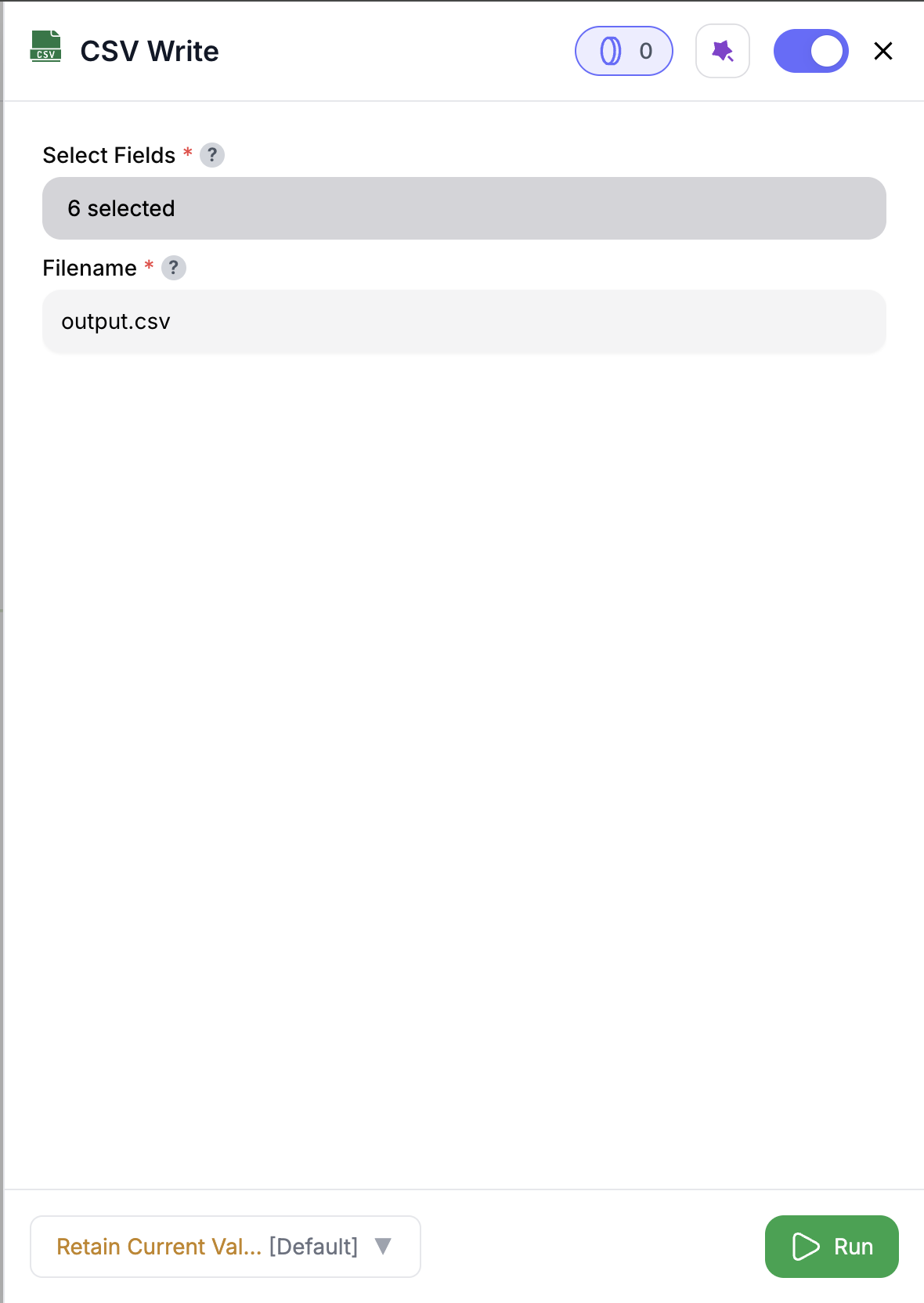 Drag the **CSV Write** node into your play.
Attach a node that outputs data — that’s the data you’ll export.
Enter a filename **including the `.csv` extension** (e.g. `sales_export.csv`).
Select specific columns to export.\
This is your last chance to include only the fields you want in the final file.
Toggle the node to the right (purple for test mode, green for full play), then hit **Run** to generate your CSV.\
Once the execution completes, the download link appears in the output panel.
When the node is toggled to **purple**, it runs in test mode — limited to 5 rows. Switch to **green** to run it fully as part of your main play.
***
## Inputs
### 🛠️ Required Fields
* **Filename (✅)**\
The name of the output CSV file, including `.csv`.\
*Why it matters:* Sets the filename for the downloadable file.
### 🎯 Optional Fields
* **Select Fields (⚪️)**\
List of column names to include.\
*Why it matters:* Helps you focus the export on just the fields that matter — ideal for reporting or sharing insights with Sales/CS.
***
## Output
Once execution completes, you’ll get:
* A ready-to-download `.csv` file
* File metadata: number of rows, columns, and included fields
***
## How It Works
1. Validates that a filename and input data are present
2. Applies field filtering (if selected)
3. Creates a `.csv` file with your specified structure
4. Makes the file available to download in the output panel
***
## 🚀 Example Use Cases & Prompts
| Use Case | Setup Example |
| ---------------- | ---------------------------------------- |
| Share pipeline | Select `account_name`, `stage`, `owner` |
| Report for Sales | Set filename to `q3_pipeline_export.csv` |
| Audit log export | Export `user_id`, `action`, `timestamp` |
***
## ✨ Pro Tips
**Choose only what you need.** Use `Select Fields` to simplify your exports and avoid unnecessary columns.
**Use descriptive filenames** like `demo_accounts.csv` or `q4_followups.csv` to keep files easy to find and share.
**Preview your result.** After toggling the node and hitting run, use the output preview to check if your file includes the right data.
***
## ⚠️ Important Considerations
Leaving `Select Fields` empty means **all input columns** will be exported.
***
## 🛠 Troubleshooting & Gotchas
| Symptom | Likely Cause | Quick Fix |
| ------------------------ | -------------------------- | ------------------------------------ |
| No download file shown | Missing filename | Add a `.csv` filename and rerun |
| Too many columns in file | Fields not selected | Use **Select Fields** to trim export |
| Only 5 rows exported | Node in test mode (purple) | Toggle to **green** for full run |
***
## 📝 FAQ
Yes — just use the **Select Fields** input to define which columns to include.
Yes — your filename must end in `.csv` (e.g. `my_export.csv`).
Click on the preview link on the node card and download by clicking the download button on the top right of the preview panel.
***
## 💰 Pricing
> The CSV Write node is free to use — **no credits required**.
***
Drag the **CSV Write** node into your play.
Attach a node that outputs data — that’s the data you’ll export.
Enter a filename **including the `.csv` extension** (e.g. `sales_export.csv`).
Select specific columns to export.\
This is your last chance to include only the fields you want in the final file.
Toggle the node to the right (purple for test mode, green for full play), then hit **Run** to generate your CSV.\
Once the execution completes, the download link appears in the output panel.
When the node is toggled to **purple**, it runs in test mode — limited to 5 rows. Switch to **green** to run it fully as part of your main play.
***
## Inputs
### 🛠️ Required Fields
* **Filename (✅)**\
The name of the output CSV file, including `.csv`.\
*Why it matters:* Sets the filename for the downloadable file.
### 🎯 Optional Fields
* **Select Fields (⚪️)**\
List of column names to include.\
*Why it matters:* Helps you focus the export on just the fields that matter — ideal for reporting or sharing insights with Sales/CS.
***
## Output
Once execution completes, you’ll get:
* A ready-to-download `.csv` file
* File metadata: number of rows, columns, and included fields
***
## How It Works
1. Validates that a filename and input data are present
2. Applies field filtering (if selected)
3. Creates a `.csv` file with your specified structure
4. Makes the file available to download in the output panel
***
## 🚀 Example Use Cases & Prompts
| Use Case | Setup Example |
| ---------------- | ---------------------------------------- |
| Share pipeline | Select `account_name`, `stage`, `owner` |
| Report for Sales | Set filename to `q3_pipeline_export.csv` |
| Audit log export | Export `user_id`, `action`, `timestamp` |
***
## ✨ Pro Tips
**Choose only what you need.** Use `Select Fields` to simplify your exports and avoid unnecessary columns.
**Use descriptive filenames** like `demo_accounts.csv` or `q4_followups.csv` to keep files easy to find and share.
**Preview your result.** After toggling the node and hitting run, use the output preview to check if your file includes the right data.
***
## ⚠️ Important Considerations
Leaving `Select Fields` empty means **all input columns** will be exported.
***
## 🛠 Troubleshooting & Gotchas
| Symptom | Likely Cause | Quick Fix |
| ------------------------ | -------------------------- | ------------------------------------ |
| No download file shown | Missing filename | Add a `.csv` filename and rerun |
| Too many columns in file | Fields not selected | Use **Select Fields** to trim export |
| Only 5 rows exported | Node in test mode (purple) | Toggle to **green** for full run |
***
## 📝 FAQ
Yes — just use the **Select Fields** input to define which columns to include.
Yes — your filename must end in `.csv` (e.g. `my_export.csv`).
Click on the preview link on the node card and download by clicking the download button on the top right of the preview panel.
***
## 💰 Pricing
> The CSV Write node is free to use — **no credits required**.
***
Build fast, flexible exports that are ready to download 📥